Terminal UI (TUI)
On Tue, 06 Oct 2026, by @lucasdicioccio, 2905 words, 42 code snippets, 2 links, 3images.
Generated from documentation/tui.md, the repository is the canonical source and may be ahead of this page.
Terminal UI (TUI)
The Terminal UI provides an interactive, real-time interface for agent conversations with support for multiple agents, streaming responses, visual feedback, file attachments, clipboard integration, subcall conversation visibility, and a tabbed interface for organizing different views.
Overview
┌─────────────────────────────────────────────────────────────────┐
│ Agents │ Chats │ History │ Help                                  │
├─────────────────────────────────────────────────────────────────┤
│  Agents                                                         │
│  ─────────────────────────────────────────────────────────────  │
│  file-assistant                                                 │
│  code-reviewer                                                  │
│  documenter                                                     │
│                                                                 │
├─────────────────────────────────────────────────────────────────┤
│                                                                 │
│  # Slug: file-assistant                                         │
│  # Announce: A helpful file assistant                           │
│  # Model: claude-sonnet-4-20250514                              │
│                                                                 │
│  # Tools:                                                       │
│  - [A] read_file                                               │
│  - [A] write_file                                              │
│  - [D:bash] bash_command                                       │
│                                                                 │
├─────────────────────────────────────────────────────────────────┤
│ [Tab] Switch  [Enter] Send  [Ctrl+C] Quit  [Ctrl+[|]] Prev/Next │
└─────────────────────────────────────────────────────────────────┘
Tabbed Interface
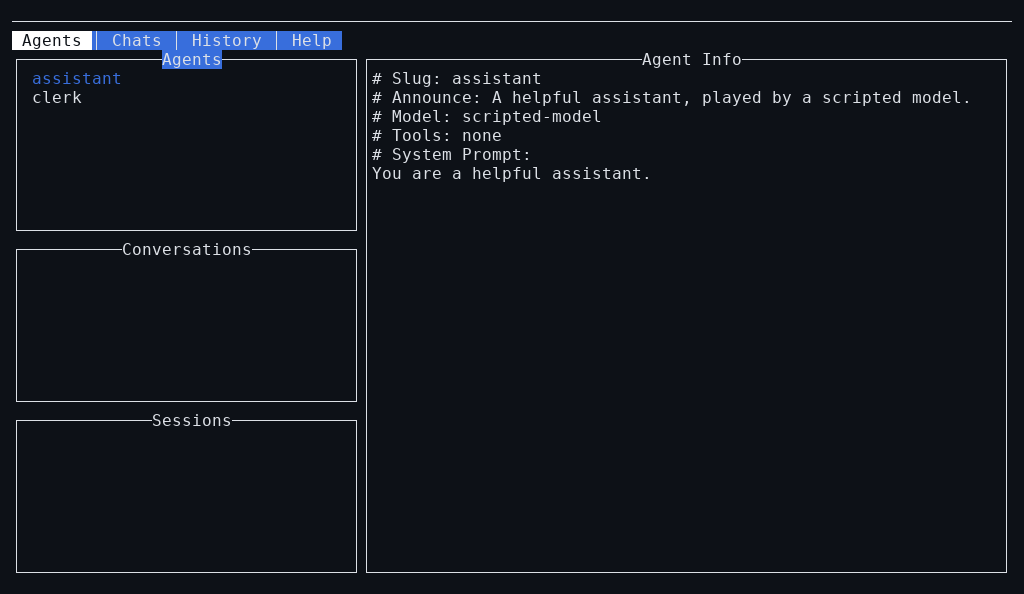
The TUI features a tabbed interface with four main tabs:
| Tab | Description | Content |
|---|---|---|
| Agents | Browse and select agents | Agent list and detailed agent information |
| Chats | Active conversations | Conversation list and message interface |
| History | Past sessions | Session list and history view |
| Help | Keyboard shortcuts | Command reference and key bindings |
Tab Navigation
| Key | Action |
|---|---|
Ctrl+[ | Switch to previous tab |
Ctrl+] | Switch to next tab |
Agents Tab
The Agents tab displays:
- Left sidebar: List of available agents
- Main area: Detailed agent information including:
- Slug and announce text
- Model name
- Tools with activation status
- System prompt
Chats Tab
The Chats tab is for active conversations:
- Left sidebar: List of ongoing conversations with status indicators:
⟳- Active (agent is processing)●- Waiting for input (unread)⏸- Paused📎- Has file attachments
- Main area: Message editor, attachment list, the draft panel (when the conversation has unsent draft text), and conversation history
Draft (unsent text while the session is busy)
Typing a message while a conversation is active, paused, or blocked on
deferred calls does not post it right away: it is appended to that
conversation’s draft, one editable, unsent buffer per conversation
(todos/os-as-standalone-server.md §5, D3). Three messages sent in a row
while the model is thinking are almost always one message being
elaborated, so each send appends a new paragraph to the draft instead of
queuing a discrete message.
- Collapsed view (default, shown below the message editor whenever the
focused conversation has a non-empty draft): the draft’s first line plus
a size indicator (
N chars, M paragraphs). - Edit (
Ctrl+A): loads the draft into the message editor (its attachments join the composer’s) and clears it – the editor is a full text editor over the whole draft text; further sends fold right back into a draft, or post, the normal way. - Send now (
Ctrl+G): posts the draft immediately, as one message, and clears it. - Clear (
Ctrl+D): discards the draft. - Ships automatically: once the session’s run stops with a status that accepts input (idle or ready – not paused, not blocked on deferred calls, not failed), the TUI posts the whole draft as a single message and clears it. A paused conversation keeps its draft until it is resumed and stops again.
The kernel never sees a draft: it only ever receives real messages and
interrupts. An interrupt (Ctrl+U) always bypasses the draft and posts
straight through.
History Tab
The History tab shows saved sessions, across every backend the runner is configured with:
- Left sidebar: List of sessions (
Client.listSessions, newest updated first), refreshed live as sessions are created, updated, or deleted elsewhere – a burst of updates during a run coalesces into at most one refresh per heartbeat, and the current selection is kept by session id across a refresh. - Main area: the selected session’s full turn history (fetched once
via
Client.getSessionand cached by id), with the same usage summary, signal metrics, and turn navigation/forking as the Chats tab.
Help Tab
The Help tab displays keyboard shortcuts and command reference for quick access to all TUI functionality.
Architecture
The TUI is a client of the in-process runner (System.Agents.Host.Runner.SessionRunner),
not a second agent runtime: agents-exe tui opens a System.Agents.Host.Host
the same way agents-exe serve does and drives it through an in-process
System.Agents.Host.Client.RunnerClient — every conversation action (new
message, pause, fork, cancel, …) is a Command sent to the runner, and
every screen update comes from Events the runner emits.
Embedded and attached. agents-exe tui (embedded) builds that client
over a runner in its own process. agents-exe tui --attach URL|PATH
(attached) opens nothing locally and builds
System.Agents.Host.Client.Http.httpClient instead: the same
RunnerClient, over a running agents-exe serve’s HTTP API and SSE event
feed, on TCP or its --socket. Everything above the client is the same
code, so an attached TUI loses nothing: agents, chats, drafts, pause,
interrupt, hard cancel, fork, History, pending calls. What it shows
depends on the server version, though: hook.failed and the subcall
events only reach it from a server that emits them. Differences that
follow from where the runner lives: the agents, API keys and database are
the server’s (--db is refused with --attach, and --agent-file or
--agent select nothing); --params-file/--set values are still sent
with every create and message (secrets are resupplied by the client, D7);
with --auth-tokens on the server, pass --token/--token-file, and the
TUI then sees only that owner’s sessions. Quitting an embedded TUI stops
the runs it started (StopRun mail) since its runner dies with it;
quitting an attached TUI leaves them running on the server. A dropped
event stream reconnects on its own with Last-Event-ID, so nothing is
missed across a short network hiccup.
Sessions live in the SQLite database at
System.Agents.CLI.ConfigLoader.defaultServerDatabasePath (next to the
resolved sessions directory) unless overridden with tui --db PATH. Old
sessions written by the pre-runner file store (conv.<uuid>.json, under
the config’s sessions read locations) stay readable: the host composites
them in as a read-only fallback (Host.hcLegacySessionDirs) behind the
SQLite backend.
Sub-agent calls (prompt_agent_*) run as real sessions of their own
(todos/os-as-standalone-server.md, Phase 5), so live progress for a
child is its own session.updated/text.delta/tool.* stream, exactly
like the parent conversation — not a separate “subcall progress” event.
The TUI still gets subcall.started/subcall.completed/subcall.failed
for the start/complete/fail transitions themselves (used to show the child
in the conversation list and its hierarchy), but token-by-token and
tool-by-tool progress in between now comes from subscribing to the child
session directly, the same as any other session. A sub-agent call made
with per-call narrowing (bindings/with/as) still runs in-tool, with
no session and no live progress of its own, until that case is supported
the same way.
Component Structure
┌─────────────────────────────────────────────────────────────────┐
│                         TUI.Core                                │
├─────────────────────────────────────────────────────────────────┤
│                                                                 │
│  ┌──────────────┐    ┌──────────────┐    ┌──────────────┐      │
│  │   TUI.Types  │───>│  TUI.Render  │───>│  TUI.Event   │      │
│  │   (state)    │    │  (display)   │    │  (input)     │      │
│  └──────────────┘    └──────────────┘    └──────────────┘      │
│         ▲                                            │          │
│         └────────────────────────────────────────────┘          │
│                      (event loop)                               │
│                                                                 │
└─────────────────────────────────────────────────────────────────┘
State Management
-- TUI.Types
data Tab
    = AgentsTab
    | ChatsTab
    | HistoryTab
    | HelpTab
    deriving (Show, Eq)

data UIState = UIState
    { _uiFocusRing :: FocusRing WidgetName
    , _currentTab :: Tab           -- Current active tab
    , _helpContent :: [Text]       -- Help text lines
    , _turnNavigation :: Maybe TurnNavigationState
    -- ^ When Just, we are in turn navigation mode
    , _attachedFiles :: Map ConversationId [MediaAttachment]
    -- ^ Media attachments per conversation
    , _attachmentDialogState :: AttachmentDialogState
    -- ^ File attachment dialog state
    , _filePathInput :: Editor Text WidgetName
    -- ^ Editor for file path input
    , _selectedAttachmentIndex :: Maybe Int
    -- ^ Selected attachment index
    , ...
    }

data TUIState = TuiState
    { _tuiCore :: TVar Core
    , _tuiUI :: UIState
    , _eventChan :: BChan AppEvent
    , _sessionConfig :: SessionConfig
    }
Background Tool Calls
Agents configured for asynchronous execution (see async-tool-calls.md) run tool calls in the background. The TUI shows what is running, with the latest progress each tool reports:
Background tool calls running: run_tests

[Partial] > run the tests and the linter
  ✓ lint (call_1): completed
  ⏳ run_tests (call_2): running: 128 tests passed
Call states are pending, deferred, running, completed,
completed (delivered later) and failed. “Delivered later” means the model
had already been answered with a placeholder for that call, and got the result
in a following message.
While calls run in the background and the LLM has nothing to do, the conversation still accepts input: whichever comes first — your message or the results — is sent to the model.
A conversation that waits on deferred calls (completed by an external worker) stops with a status message instead of waiting; see “Pending calls” below to answer them from the TUI itself.
Pending calls
When a run stops on deferred calls (calls.deferred), the conversation’s
status becomes “blocked on deferred” and a Pending panel appears below the
Draft panel, listing each call’s tool name, a prefix of its continuation
token, and its arguments:
┌ Pending (1) ──────────────────────────────────────┐
│ Ctrl+O: select next | Ctrl+Y: answer selected, ... │
│                                                     │
│ > bash_command (token a1b2c3d4): {"cmd": "ls"}     │
│ - search (token 5e6f7a8b): {"q": "todo"}           │
└─────────────────────────────────────────────────────┘
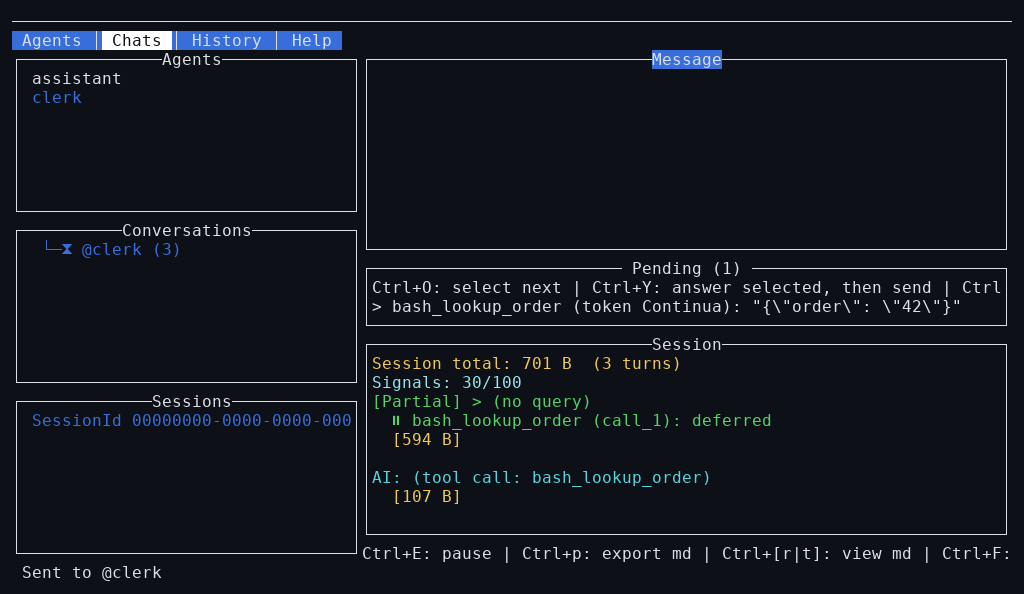
> marks the selected call, the first one with a continuation token until
you move it: Ctrl+O (select-pending) selects the next one, wrapping
around. Ctrl+Y and Ctrl+W act on the selected call.
Ctrl+Y (answer-pending) puts the message editor into “answer mode” for
the selected pending call; type the result and
send it (Ctrl+Enter/the usual send trigger) the way you would any other
message. That calls completeCall with autoResume = true, the same
mechanism the server’s own GET /v1/sessions/:id/pending workers use, so
the run resumes on its own — a fresh run.started/run.stopped pair
follows. The panel clears once the run starts again.
Ctrl+W (fail-pending) fails the selected call: it completes it (the same
completeCall, autoResume = true) with the text Error: <reason>, where the
reason is what is in the message editor (which is cleared), or “the user
declined this call” when it is empty. UserToolResponse has no dedicated
error form, so a failed call reaches the model as an ordinary text result that
reads as an error, the way a failing tool’s own error does. Selecting, answering
and failing work the same over an embedded runner and with --attach, since
they only use completeCall.
Subcall Conversation Visibility
When agents call other agents as tools (via prompt_agent_<slug>), the subcall conversations are now visible in the TUI with visual distinction and hierarchy tracking.
Visual Hierarchy
Subcall conversations are displayed with tree-branch styling to show parent-child relationships:
Conversations
├─ @file-assistant (⟳)                    -- Root conversation
│  ├─ @code-reviewer (⟳)                  -- Subcall depth 1
│  │  └─ @syntax-checker (●)              -- Subcall depth 2
│  └─ @documenter (●)                     -- Subcall depth 1
└─ @helper-agent (●)                      -- Another root conversation
Conversation Indicators
| Visual | Meaning |
|---|---|
@slug | Root conversation (depth 0) |
├─ @slug | Subcall with siblings |
└─ @slug | Last subcall in branch |
│ | Continuation line for parent with more children |
| Dimmed text | Subcall conversation |
| Normal text | Root conversation |
⟳ | Active (processing) |
● | Waiting for input |
⏸ | Paused |
Subcall Event Flow
Parent Agent (TUI visible)
       │
       ▼ calls helper agent
┌─────────────────────────┐
│ turnAgentRuntimeIntoIOTool
│ (OneShotTool.hs)        │
│                         │
│ 1. Insert into OS World │
│    - ConversationConfig │
│    - ConversationState  │
│    - Lineage (parent)   │
│                         │
│ 2. Emit SubcallStarted  │◄── OSEvent
│    (parentId, convId)   │
│                         │
│ 3. Run sub-agent        │
│                         │
│ 4. Emit SubcallProgress │◄── OSEvent (after each step)
│                         │
│ 5. Emit SubcallCompleted│◄── OSEvent (on success)
│    or SubcallFailed     │◄── OSEvent (on error)
└──────────┬──────────────┘
           │
           ▼ OS Event Queue
┌─────────────────────────┐
│   TUI Event Handler     │
│   (Event.hs)            │
│                         │
│ - Create conversation   │
│ - Show in list          │
│ - Update on progress    │
│ - Mark completed        │
└─────────────────────────┘
Subcall Event Types
-- OS Events (from System.Agents.OS.Events)
data OSEvent
    = ...
    | OSEvent_SubcallStarted
        { subcallParentConversationId :: ConversationId
        , subcallConversationId :: ConversationId
        , subcallAgentSlug :: Text
        , subcallDepth :: Int
        }
    | OSEvent_SubcallProgress
        { subcallProgressConversationId :: ConversationId
        , subcallProgressSession :: Session
        }
    | OSEvent_SubcallCompleted
        { subcallCompletedConversationId :: ConversationId
        , subcallCompletedResult :: Text
        }
    | OSEvent_SubcallFailed
        { subcallFailedConversationId :: ConversationId
        , subcallFailedError :: Text
        }

-- App Events (TUI internal)
data AppEvent
    = ...
    | AppEvent_SubcallStarted ConversationId ConversationId Text Int
    | AppEvent_SubcallProgress ConversationId Session
    | AppEvent_SubcallCompleted ConversationId Text
    | AppEvent_SubcallFailed ConversationId Text
Conversation Types
data Conversation = Conversation
    { conversationId :: ConversationId
    , conversationAgent :: TuiAgent
    , conversationThreadId :: Maybe ThreadId
    , conversationSession :: Maybe Session
    , conversationName :: Text
    , conversationChan :: BChan (Maybe UserQuery)
    , conversationStatus :: ConversationStatus
    , conversationOnProgress :: OnSessionProgress
    , conversationIsSubcall :: Bool      -- ^ NEW: Is this a subcall?
    , conversationParentId :: Maybe ConversationId  -- ^ NEW: Parent conversation
    , conversationSubcallDepth :: Int    -- ^ NEW: Nesting depth (0 = root)
    }
Rendering Subcall Hierarchy
-- Render conversations with tree structure
renderConversationForest :: [ConversationTree] -> [Widget N]
renderConversationForest trees =
    concatMap (renderTreeNode [] False) trees

-- Build tree from flat list
buildConversationForest :: [Conversation] -> [ConversationTree]
buildConversationForest convs =
    let -- Find roots (no parent or orphaned)
        isRoot c = conversationParentId c == Nothing
                || conversationParentId c `notElem` map (Just . conversationId) convs
        roots = filter isRoot convs

        -- Build recursively
        buildTree conv = ConversationTree conv $
            map buildTree (findChildren conv)
        findChildren parent =
            filter (\c -> conversationParentId c == Just (conversationId parent)) convs
    in map buildTree roots

-- Make prefix with tree branches
makePrefix :: [Bool] -> Bool -> Text
makePrefix ancestorIsLasts isLast
    | null ancestorIsLasts = if isLast then "└─" else "├─"
    | otherwise =
        let continuation = mconcat $
                map (\isLast' -> if isLast' then "  " else "│ ") ancestorIsLasts
        in continuation <> (if isLast then "└─" else "├─")
Visual Attributes
tui_appAttrMap :: TuiState -> AttrMap
tui_appAttrMap _ =
    attrMap Vty.defAttr
        [ ...
        , -- Subcall visual distinction
          (subcallAttr, fg white `withStyle` dim)
        , (subcallSelectedAttr, fg black `on` brightWhite `withStyle` bold)
        , (treeBranchAttr, fg white `withStyle` dim)
        , (rootConversationAttr, defAttr)
        ]
File Attachments
The TUI supports attaching files to messages for multi-modal LLM interactions.
Attaching Files
Via File Path Input:
- Press
Ctrl+Fto open the file path input dialog - Type or paste the absolute path to the file
- Press
Enterto attach,Escto cancel
Via the file browser: the dialog Ctrl+F opens lists a directory, with
its current path under the listing.
| Key | Action |
|---|---|
↑ / ↓ | Move the cursor |
Enter | Open the directory under the cursor (.. goes up), or attach the file under it |
Backspace | Go to the parent directory |
/ | Filter the listing by name; Enter keeps the filter, Esc stops searching |
Esc | Cancel (or stop a search in progress) |
A directory that cannot be read (for instance for lack of permission) is
reported under the listing; Backspace leaves it.
Supported file path formats:
/path/to/image.png                    # Auto-detect MIME type
image/png;/path/to/image.png          # Explicit MIME type
Attachment Display
Attached files are displayed below the message editor:
┌─────────────────────────────────────────────────────────────┐
│ Message [2 attachments]                                     │
├─────────────────────────────────────────────────────────────┤
│ > Your message here...                                      │
│                                                             │
├─────────────────────────────────────────────────────────────┤
│ Attachments (2) - Del/Backspace: remove | Ctrl+Shift+F: clear all│
│   📎 screenshot.png (image/png, 245KB)                     │
│ ▶ 📎 report.pdf (application/pdf, 1.2MB)                   │
└─────────────────────────────────────────────────────────────┘
Managing Attachments
| Key | Action |
|---|---|
Ctrl+F | Open file path input dialog |
Ctrl+Shift+F | Clear all attachments |
Del / Backspace | Remove selected attachment |
Up / Down | Select attachment (when focus is on attachment list) |
Supported File Types
The TUI can attach any file type. MIME type detection is automatic based on file extension:
| Category | Extensions | MIME Types |
|---|---|---|
| Images | .png, .jpg, .jpeg, .gif, .webp, .svg | image/png, image/jpeg, image/gif, image/webp, image/svg+xml |
| Documents | .pdf, .txt, .md, .json, .xml | application/pdf, text/plain, text/markdown, application/json, application/xml |
| Audio | .mp3, .wav, .ogg, .aac, .flac | audio/mp3, audio/wav, audio/ogg, audio/aac, audio/flac |
| Video | .mp4, .webm, .mov, .avi | video/mp4, video/webm, video/quicktime, video/avi |
| Archives | .zip | application/zip |
Size Limit: 50MB per file
Attachment State
-- Attachments are stored per conversation
type AttachedFiles = Map ConversationId [MediaAttachment]

data MediaAttachment = MediaAttachment
    { mediaMimeType :: Text        -- e.g., "image/png"
    , mediaBase64Data :: Text      -- Base64-encoded content
    , mediaFilename :: Maybe Text  -- Original filename
    }

-- Dialog state for file attachment
data AttachmentDialogState
    = AttachmentDialogClosed
    | AttachmentDialogPathInput
Attachment Flow
User presses Ctrl+F
       │
       ▼
┌──────────────────┐
│ Open path dialog │
│ (text input)     │
└────────┬─────────┘
         │
         ▼
┌──────────────────┐
│ User enters path │
│ Presses Enter    │
└────────┬─────────┘
         │
         ▼
┌──────────────────┐
│ Load file        │
│ Detect MIME type │
│ Base64 encode    │
└────────┬─────────┘
         │
         ▼
┌──────────────────┐
│ Add to           │
│ attachedFiles    │
│ map              │
└────────┬─────────┘
         │
         ▼
┌──────────────────┐
│ Render in        │
│ attachment list  │
└──────────────────┘
Clipboard Integration
The TUI supports pasting content from the system clipboard, including images, file paths, and text.
Clipboard Pasting
Press Ctrl+V to paste from clipboard:
| Content Type | Action |
|---|---|
| Image | Save to temp file and attach |
| File path | Attach the file |
| Multiple file paths | Attach all valid files |
| Text | Insert into message editor |
Platform Support
| Platform | Backend | Required Tools |
|---|---|---|
| Linux (X11) | xclip or xsel | xclip or xsel |
| Linux (Wayland) | wl-clipboard | wl-paste |
| macOS | Built-in | pbpaste (included) |
| Windows | PowerShell | powershell.exe |
Smart Content Detection
The clipboard module automatically detects content type:
data ClipboardContent
    = ClipboardImage ByteString Text    -- Image data with MIME type
    | ClipboardFilePath FilePath        -- Single file path
    | ClipboardText Text                -- Plain text
    | ClipboardFilePaths [FilePath]     -- Multiple file paths
    | ClipboardUnknown                  -- Unsupported content
Detection order:
- Check for image data (via magic bytes: PNG
\x89PNG, JPEG\xFF\xD8\xFF, GIFGIF87a/GIF89a, WebPRIFF) - Check for file paths (valid paths that exist)
- Check for multiple file paths (one per line)
- Fall back to plain text
Clipboard Module
-- System.Agents.TUI.Clipboard

-- Detect available backend
detectBackend :: IO ClipboardBackend

-- Read clipboard content
readClipboard :: ClipboardBackend -> IO (Maybe ByteString)

-- Detect content type
detectClipboardContent :: IO (Maybe ClipboardContent)

-- Analyze and convert to action
analyzeContent :: ClipboardContent -> IO ContentAction

data ContentAction
    = AttachAsMedia MediaAttachment
    | PasteAsText Text
    | AttachMultipleFiles [MediaAttachment]
    | IgnoreContent
Image Pasting from Clipboard
When an image is pasted from clipboard:
- Detect image format from magic bytes
- Save to temporary file with appropriate extension
- Create
MediaAttachmentwith detected MIME type - Attach to current conversation
- Show status: “Attached from clipboard: image.png”
Temporary file location: $TMPDIR/agents-exe-clipboard/clipboard-*.png
Size limit: 50MB for clipboard images
File Drop Support (Terminal Protocols)
The clipboard module also supports file drop events from modern terminals:
| Protocol | Terminal | Support |
|---|---|---|
| iTerm2 File Drop | iTerm2 (macOS) | ✅ Supported |
| Kitty Graphics | Kitty | ✅ Supported |
| OSC 52 | Various | ✅ Read support |
Rendering
Tab Bar Rendering
-- TUI.Render
renderTabBar :: Tab -> Widget N
renderTabBar activeTab =
    let tabs = [AgentsTab, ChatsTab, HistoryTab, HelpTab]
        renderTab tab =
            let tabName = case tab of
                    AgentsTab -> " Agents "
                    ChatsTab -> " Chats "
                    HistoryTab -> " History "
                    HelpTab -> " Help "
                tabAttr = if tab == activeTab
                          then activeTabAttr
                          else inactiveTabAttr
             in withAttr tabAttr $ txt tabName
     in hBox (intersperse separator $ map renderTab tabs)
Tab-Specific Content
render_contentArea :: TuiState -> Widget N
render_contentArea st =
    case st ^. tuiUI . currentTab of
        AgentsTab -> renderAgentsTab st
        ChatsTab -> renderChatsTab st
        HistoryTab -> renderHistoryTab st
        HelpTab -> renderHelpTab st
Attachment List Rendering
render_attachmentPanel :: TuiState -> [MediaAttachment] -> Widget N
render_attachmentPanel st attachments =
    borderWithFocus
        st
        AttachmentListWidget
        (" Attachments (" <> Text.pack (show $ length attachments) <> ") ")
        $ vBox
            [ txt "Del/Backspace: remove | Ctrl+Shift+F: clear all"
            , txt ""
            , vBox $ zipWith (render_attachment_item selectedIdx) [0 ..] attachments
            ]

render_attachment_item :: Maybe Int -> Int -> MediaAttachment -> Widget N
render_attachment_item selectedIdx idx att =
    let isSelected = selectedIdx == Just idx
        marker = if isSelected then "▶ " else "  "
        filename = maybe "unnamed" id att.mediaFilename
        mimeType = att.mediaMimeType
        sizeStr = formatAttachmentSize att.mediaBase64Data
     in hBox
         [ txt marker
         , txt "📎 "
         , txt filename
         , txt " ("
         , withAttr attachmentSizeAttr $ txt mimeType
         , txt ", "
         , withAttr attachmentSizeAttr $ txt sizeStr
         , txt ")"
         ]
Conversation List with Nesting
-- Render conversation list with subcall hierarchy
render_conversationList :: TuiState -> Widget N
render_conversationList st =
    let convs = Vector.toList (listElements (st ^. tuiUI . conversationList))
        forest = buildConversationForest convs
        hasFocus = focusGetCurrent (st ^. tuiUI . uiFocusRing) == Just ConversationListWidget
        selectedId = case listSelectedElement (st ^. tuiUI . conversationList) of
            Just (_, conv) -> Just (conversationId conv)
            Nothing -> Nothing
     in borderWithFocus
            st
            ConversationListWidget
            "Conversations"
            ( viewport ConversationListWidget Both $
                vBox $ renderConversationForest st selectedId hasFocus forest
            )

renderConversationForest :: TuiState -> Maybe ConversationId -> Bool -> [ConversationTree] -> [Widget N]
renderConversationForest st selectedId hasFocus trees =
    concatMap (\(idx, tree) -> renderTreeNode st selectedId hasFocus [] (idx == length trees - 1) tree) (zip [0 ..] trees)

renderTreeNode :: TuiState -> Maybe ConversationId -> Bool -> [Bool] -> Bool -> ConversationTree -> [Widget N]
renderTreeNode st selectedId hasFocus ancestorIsLasts isLast (ConversationTree conv children) =
    let isSelected = selectedId == Just (conversationId conv)
        nodeWidget = renderNestedConversationItem st hasFocus isSelected ancestorIsLasts isLast conv
        childWidgets = concatMap (\(idx, child) -> renderTreeNode st selectedId hasFocus (ancestorIsLasts ++ [isLast]) (idx == length children - 1) child) (zip [0 ..] children)
     in nodeWidget : childWidgets
Event Handling
Tab Switching
-- TUI.Event
tui_appHandleEvent tracer ev = do
    case ev of
        -- Tab switching
        VtyEvent (Vty.EvKey (Vty.KChar '[') [Vty.MCtrl]) ->
            cycleTabBackward
        VtyEvent (Vty.EvKey (Vty.KChar ']') [Vty.MCtrl]) ->
            cycleTabForward
        -- ...

cycleTabForward :: EventM N TuiState ()
cycleTabForward = do
    current <- use (tuiUI . currentTab)
    let next = nextTab current
    tuiUI . currentTab .= next
    -- Update focus ring for the new tab
    mCurrentFocus <- use (tuiUI . uiFocusRing . to focusGetCurrent)
    tuiUI . uiFocusRing .= buildFocusRingForTabPreserving next mCurrentFocus
Subcall Event Handling
-- Handle subcall events in both normal and navigation mode
handleNormalEvent tracer ev =
    case ev of
        AppEvent (AppEvent_SubcallStarted parentId subcallId slug depth) ->
            handleSubcallStarted tracer parentId subcallId slug depth
        AppEvent (AppEvent_SubcallProgress subcallId sess) ->
            handleSubcallProgress subcallId sess
        AppEvent (AppEvent_SubcallCompleted subcallId result) ->
            handleSubcallCompleted subcallId result
        AppEvent (AppEvent_SubcallFailed subcallId err) ->
            handleSubcallFailed subcallId err
        ...

-- Create subcall conversation entry
handleSubcallStarted :: Tracer IO Trace -> ConversationId -> ConversationId -> Text -> Int -> EventM N TuiState ()
handleSubcallStarted _tracer parentId subcallId slug depth = do
    agents <- use (tuiUI . agentList . to listElements)
    case findAgentBySlug slug agents of
        Just tuiAgent -> do
            inChan <- liftIO $ newBChan 100
            let conv = Conversation
                    { conversationId = subcallId
                    , conversationAgent = tuiAgent
                    , conversationThreadId = Nothing
                    , conversationSession = Nothing
                    , conversationName = "@" <> tuiSlug tuiAgent
                    , conversationChan = inChan
                    , conversationStatus = ConversationStatus_Active
                    , conversationOnProgress = \_ -> pure ()
                    , conversationIsSubcall = True
                    , conversationParentId = Just parentId
                    , conversationSubcallDepth = depth
                    }
            coreRef <- use tuiCore
            liftIO $ atomically $ modifyTVar coreRef $ appendConversation conv
            tuiUI . conversationList %= listInsert 0 conv
        Nothing -> showStatus StatusWarning $ "Agent not found for subcall: " <> slug

-- Update subcall progress
handleSubcallProgress :: ConversationId -> Session -> EventM N TuiState ()
handleSubcallProgress subcallId sess = do
    coreRef <- use tuiCore
    liftIO $ atomically $ modifyTVar coreRef $ \c ->
        c { coreConversations = updateConversationSession subcallId sess (coreConversations c) }

-- Mark subcall completed
handleSubcallCompleted :: ConversationId -> Text -> EventM N TuiState ()
handleSubcallCompleted subcallId _result = do
    updateConversationStatus subcallId ConversationStatus_WaitingForInput
    showStatus StatusInfo "Subcall completed"
Attachment Event Handling
-- Handle Ctrl+F for file attachment
VtyEvent (Vty.EvKey (Vty.KChar 'f') [Vty.MCtrl]) -> do
    resetQuitConfirmation
    openFilePathDialog

-- Handle Ctrl+Shift+F to clear all attachments
VtyEvent (Vty.EvKey (Vty.KChar 'F') [Vty.MCtrl, Vty.MShift]) -> do
    resetQuitConfirmation
    handleClearAllAttachments

-- Handle clipboard paste
VtyEvent (Vty.EvKey (Vty.KChar 'v') [Vty.MCtrl]) -> do
    resetQuitConfirmation
    handleClipboardPaste tracer
Clipboard Paste Handler
handleClipboardPaste :: Tracer IO Trace -> EventM N TuiState ()
handleClipboardPaste _tracer = do
    hasSupport <- liftIO hasClipboardSupport
    if not hasSupport
        then showStatus StatusError "Clipboard not available - install xclip, wl-clipboard, or pbpaste"
        else do
            mContent <- liftIO detectClipboardContent
            case mContent of
                Nothing ->
                    showStatus StatusWarning "Clipboard is empty or inaccessible"
                Just content -> do
                    action <- liftIO $ analyzeContent content
                    case action of
                        IgnoreContent ->
                            showStatus StatusWarning "No attachable content in clipboard"
                        PasteAsText text -> do
                            editorContents <- use (tuiUI . messageEditor . editContentsL)
                            let newContents = TextZipper.insertMany text editorContents
                            tuiUI . messageEditor . editContentsL .= newContents
                            showStatus StatusInfo "Text pasted from clipboard"
                        AttachAsMedia attachment -> do
                            mConv <- getFocusedConversation
                            case mConv of
                                Nothing -> showStatus StatusError "No conversation selected"
                                Just conv -> do
                                    let convId = conversationId conv
                                    tuiUI . attachedFiles %= Map.insertWith (\new old -> old ++ new) convId [attachment]
                                    let filename = maybe "unnamed" id attachment.mediaFilename
                                    showStatus StatusInfo $ "Attached from clipboard: " <> filename
                        AttachMultipleFiles attachments -> do
                            mConv <- getFocusedConversation
                            case mConv of
                                Nothing -> showStatus StatusError "No conversation selected"
                                Just conv -> do
                                    let convId = conversationId conv
                                    tuiUI . attachedFiles %= Map.insertWith (\new old -> old ++ new) convId attachments
                                    showStatus StatusInfo $ "Attached " <> Text.pack (show $ length attachments) <> " files from clipboard"
Turn Navigation
Turn navigation allows you to browse through conversation history turn-by-turn and fork new conversations from any point.
Entering Navigation Mode
Press Enter when focused on the Conversation view or Session view to enter turn navigation mode:
┌─────────────────────────────────────────────────────────────┐
│ Conversation - Turn Navigation (3/8) [Enter:exit F:fork]    │
│ ┌─────────────────────────────────────────────────────────┐ │
│ │ -----------------------                                 │ │
│ │▶ < What is the best approach for...      ← SELECTED    │ │
│ │  + ...                                                  │ │
│ │                                                         │ │
│ │ -----------------------                                 │ │
│ │  < You could consider using...                          │ │
│ └─────────────────────────────────────────────────────────┘ │
└─────────────────────────────────────────────────────────────┘
Navigation Controls
| Key | Action |
|---|---|
Up | Navigate to earlier turn |
Down | Navigate to later turn |
F | Fork conversation at selected turn |
Enter | Exit navigation mode |
Esc | Exit navigation mode |
Forking Conversations
Forking creates a new conversation starting from the selected turn, preserving only the turns before it:
Turn 0: User - "Hello!"
Turn 1: Assistant - "Hi there!"
Turn 2: User - "How do I..." ← Selected for fork
Turn 3: Assistant - "You can..."

Forking at Turn 2 creates new conversation with:
Turn 0: User - "Hello!"
Turn 1: Assistant - "Hi there!"
(New conversation starts here)
The original session remains untouched. The forked session has forkedFromSessionId set to the original session’s ID.
Turn Navigation Types
-- | State for turn-by-turn navigation
data TurnNavigationState = TurnNavigationState
    { _navSession :: Session
    -- ^ The session being navigated
    , _navSelectedTurnIndex :: Int
    -- ^ Currently selected turn index (0-based)
    , _navTotalTurns :: Int
    -- ^ Total number of turns for display
    }

-- | Widget name for turn navigation viewport
data WidgetName
    = ...
    | TurnNavigationWidget
    -- ^ For viewport scrolling during turn navigation
Message Queue Management
When a conversation is paused, you can manage queued messages - messages typed while the agent was processing.
Queue Management UI
When paused with queued messages, the Chats tab shows a queue management panel:
┌─────────────────────────────────────────────────────────────┐
│ Message                                                      │
├─────────────────────────────────────────────────────────────┤
│ > User's typed message...                                   │
│                                                             │
├─────────────────────────────────────────────────────────────┤
│ Queued Messages (2) - Ctrl+D: clear  Del: delete selected │
│ ┌─────────────────────────────────────────────────────────┐ │
│ │ ▶ First queued message text...                          │ │
│ │   Second queued message that is longer...               │ │
│ └─────────────────────────────────────────────────────────┘ │
├─────────────────────────────────────────────────────────────┤
│ Conversation                                                 │
│ ...existing conversation content...                          │
└─────────────────────────────────────────────────────────────┘
Queue Management Controls
| Key | Action |
|---|---|
Ctrl+D | Clear all queued messages |
Del / Backspace | Delete selected queued message |
Up | Select previous message |
Down | Select next message |
Activation
Queue management is only available when:
- The conversation status is
ConversationStatus_Paused - There are queued messages in the buffer
To pause/unpause a conversation, press Ctrl+E.
Queue State
data UIState = UIState
    { ...
    , _uiBufferedMessages :: Map ConversationId [Text]
    -- ^ Copy of buffered messages from Core for UI rendering
    , _queuedMessagesFocus :: Maybe Int
    -- ^ Index of currently selected queued message (Nothing = none selected)
    }

-- The Core also maintains the source of truth
data Core = Core
    { ...
    , coreBufferedMessages :: TVar (Map ConversationId [Text])
    -- ^ Buffered messages per conversation
    , corePausedConversations :: Set ConversationId
    -- ^ Set of paused conversation IDs
    }
Keyboard Shortcuts
Navigation
| Key | Action |
|---|---|
Tab | Cycle focus forward through widgets |
Shift+Tab | Cycle focus backward through widgets |
Ctrl+Z | Toggle zoom mode for current widget |
Tabs
| Key | Action |
|---|---|
Ctrl+[ | Switch to previous tab |
Ctrl+] | Switch to next tab |
Conversations
| Key | Action |
|---|---|
Ctrl+N | Start new conversation with selected agent |
Ctrl+C | Continue restored session |
Meta+Enter | Send message |
Ctrl+E | Pause/unpause conversation |
File Attachments
| Key | Action |
|---|---|
Ctrl+F | Open file path input dialog |
Ctrl+Shift+F | Clear all attachments |
Del / Backspace | Remove selected attachment |
Up / Down | Select attachment (when focused) |
Clipboard
| Key | Action |
|---|---|
Ctrl+V | Paste from clipboard (images, files, text) |
Turn Navigation
| Key | Action |
|---|---|
Enter | Enter turn navigation mode (when on conversation) |
Up/Down | Navigate between turns (in navigation mode) |
F | Fork conversation at selected turn |
Enter/Esc | Exit turn navigation mode |
Queue Management (when paused)
| Key | Action |
|---|---|
Ctrl+D | Clear all queued messages |
Del / Backspace | Delete selected queued message |
Up/Down | Select queued message |
Session Export
| Key | Action |
|---|---|
Ctrl+P | Export session to markdown file |
Ctrl+T | View session in external viewer (chronological) |
Ctrl+R | View session in external viewer (reverse) |
Session Search (History Tab)
| Key | Action |
|---|---|
/ | Start search |
n | Next result |
N | Previous result |
Esc | Clear search |
Other
| Key | Action |
|---|---|
F5 | Refresh tools for selected agent |
Esc, Ctrl+Q | Quit application |
Session Export and Viewing
The TUI supports exporting and viewing session content in markdown format.
Export to Markdown
Press Ctrl+p to export the current session to a markdown file:
handleDumpSessionToMarkdown :: EventM N TuiState ()
handleDumpSessionToMarkdown = do
    mSession <- use (tuiCore . coreSession)
    mConvId <- getFocusedConversationId
    case (mSession, mConvId) of
        (Just session, Just (ConversationId cid)) -> do
            let markdown = formatSessionMarkdown Chronological session
                fileName = "conv." <> show cid <.> "md"
            liftIO $ TextIO.writeFile fileName markdown
            showStatus StatusInfo $ "Exported to " <> Text.pack fileName
        ...
View with External Viewer
The TUI can display session content using an external markdown viewer configured via the AGENT_MD_VIEWER environment variable.
Chronological Order (Oldest First):
Press Ctrl+t to view the session in chronological order (oldest messages first):
VtyEvent (Vty.EvKey (Vty.KChar 't') [Vty.MCtrl]) ->
    handleViewSessionWithExternalViewer Chronological
Antichronological Order (Newest First):
Press Ctrl+r to view the session in reverse chronological order (newest messages first):
VtyEvent (Vty.EvKey (Vty.KChar 'r') [Vty.MCtrl]) ->
    handleViewSessionWithExternalViewer Antichronological
Example:
# Set viewer (e.g., glow, bat, less)
export AGENT_MD_VIEWER="glow -p"

# Or use a pager
export AGENT_MD_VIEWER="less -R"

# Then start TUI
agents-exe tui --agent-file agent.json
Order Preference
data OrderPreference = Chronological | Antichronological

formatSessionMarkdown :: OrderPreference -> Session -> Text.Text
formatSessionMarkdown orderPref session =
    let opts = SessionPrintOptions
            { ...
            , orderPreference = orderPref
            , ...
            }
     in formatSessionAsMarkdown opts session
Use cases:
- Chronological (
Ctrl+t): Best for reviewing the full conversation from start to finish - Antichronological (
Ctrl+r): Best when you care about recent changes and want to see the most recent messages first
Session Search
The History tab includes session search functionality for finding past conversations.
Search Interface
┌─────────────────────────────────────────────────────────────┐
│ Sessions                                [Search: database] │
│ ─────────────────────────────────────────────────────────  │
│  ▶ 2024-01-15 10:30 - database migration                  │
│    2024-01-14 15:20 - api design                          │
│  ▶ 2024-01-13 09:00 - database schema review              │
│                                                             │
├─────────────────────────────────────────────────────────────┤
│ Session View                                                 │
│ ...selected session content...                              │
└─────────────────────────────────────────────────────────────┘
Search Features
- Real-time filtering: Sessions are filtered as you type
- Full-text search: Searches across session content
- Highlighting: Matching terms are highlighted
- Keyboard navigation:
n/Nto jump between results
Running the TUI
Main Entry Point
-- TUI.Core
runTUI :: Tracer IO Trace -> SessionStore -> LoadedApiKeys -> [Props] -> IO ()
runTUI tracer store apiKeys propsList = do
    let config = fileSessionConfig store apiKeys
    runTUIWithConfig tracer config propsList

runTUIWithConfig :: Tracer IO Trace -> SessionConfig -> [Props] -> IO ()
runTUIWithConfig tracer config props = do
    -- Load agent trees and create TuiAgents
    trees <- traverse loadAgentTree props
    let itrees = [tree | Initialized tree <- trees]

    -- Create TUI agents from OS-native trees
    let tuiAgents = map createTuiAgent itrees

    -- Load existing session files
    loadedSessions <- loadSessionFiles config.sessionStore

    -- Collect tools from all agents
    agentTools <- collectAgentTools tuiAgents

    -- Create event channel
    evChan <- newBChan 100

    -- Create OS event queue for subcall visibility
    osEventQueue <- newTQueueIO

    -- Start the event bridge
    startOSEventBridge osEventQueue evChan

    -- Create and initialize the OS World
    world <- atomically initWorld

    -- Create core state with World and EventQueue
    core0 <- initCore (Just world) (Just osEventQueue)
    coreTVar <- newTVarIO core0

    -- Create UI state
    let ui0 = (initUIState defaultHelpContent tuiAgents [s | (_, Just s) <- loadedSessions])
                { _uiAgentTools = agentTools }

    -- Create TUI state
    let st = TuiState coreTVar ui0 evChan config

    -- Build and run the app
    let app = App
            { appDraw = tui_appDraw
            , appChooseCursor = tui_appChooseCursor
            , appHandleEvent = tui_appHandleEvent tracer
            , appStartEvent = tui_appStartEvent
            , appAttrMap = tui_appAttrMap
            }

    void $ customMainWithDefaultVty (Just evChan) app st
Screenshots and end-to-end tests
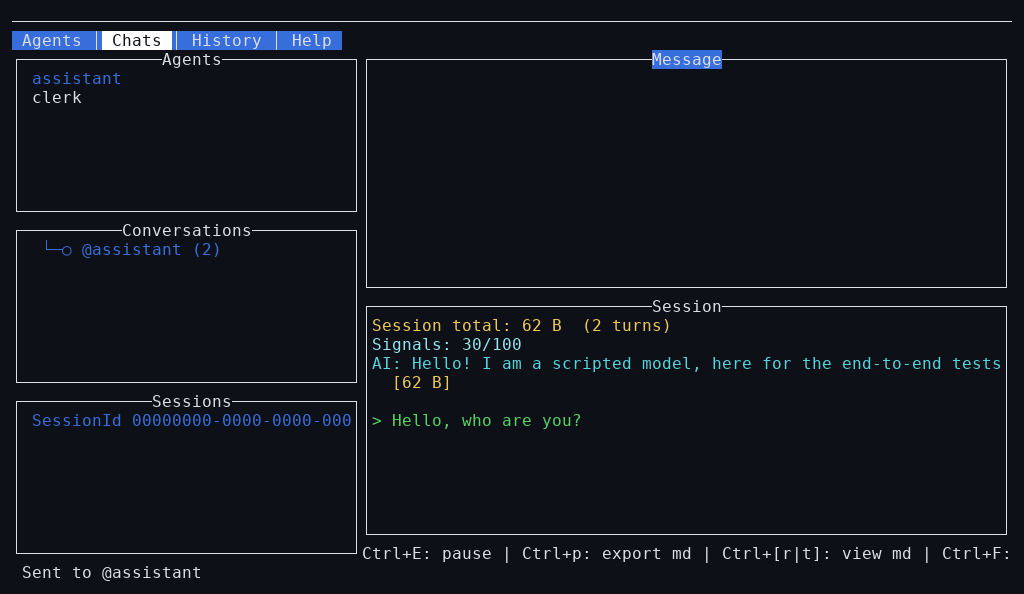
The screenshots on this page are not taken by hand. The agents-tui-e2e
test-suite runs the real agents-exe tui in a pseudo-terminal with
tuispec, sends it keys, and compares the
screen with a baseline at the end of each step. The model is a fake
OpenAI-compatible endpoint the suite serves itself, with fixed answers, and
HOME is a scratch directory: no API key, no network, none of your own
configuration.
| Scenario | Keys | Snapshots |
|---|---|---|
launch | none | agents-tab |
chat | Ctrl+N, Ctrl+], Tab twice, a message, Meta+Enter | message-typed, reply |
pending | Down, the same with an agent whose tool calls are deferred, then Ctrl+Y, an answer, Meta+Enter | pending-panel, pending-answered |
The suite is opt-in, behind the tui-e2e cabal flag, so a plain cabal test
neither builds tuispec nor needs a terminal:
# compare the screens with the baselines
cabal test agents-tui-e2e -ftui-e2e

# accept the screens as the new baselines, after a deliberate UI change
TUISPEC_UPDATE_SNAPSHOTS=1 cabal test agents-tui-e2e -ftui-e2e

# the same, and render the screenshots again
TUISPEC_UPDATE_SNAPSHOTS=1 AGENTS_TUI_E2E_PNG=1 cabal test agents-tui-e2e -ftui-e2e
Files, under test/tui-snapshots/:
| Path | Content |
|---|---|
snapshots/<scenario>/<name>.ansi.txt | The baseline: what the terminal received, with session ids zeroed |
snapshots/<scenario>/<name>.txt | The same screen as plain text, to read a change in a diff |
snapshots/<scenario>/<name>.meta.json | The terminal size (100x30) |
png/<name>.png | The screenshot, written only with AGENTS_TUI_E2E_PNG set |
tests/ | What the last run captured, and a failure bundle per failed scenario; not tracked |
Two screens are equal when their cells are: characters and colours, at 100 columns by 30 rows. Session ids are random and the sidebar shows them, so they are zeroed before comparing.
The PNGs are drawn by test/tui-e2e/render_png.py from the cells of the
baseline (characters and colours), the way a terminal would: on the grid of
the font’s advance, with the box-drawing characters as lines running from
edge to edge of their cell, so that borders are continuous. It needs python3
with Pillow and a monospace TTF: DejaVu Sans Mono or Liberation Mono where
distributions install them, or the file TUISPEC_FONT_PATH names. A glyph
that font lacks (the status icons of the conversation list: ⧗, ⏸) is taken
from Noto Sans Symbols 2, Noto Sans Math or DejaVu Sans when installed
(fonts-noto-core on Debian and Ubuntu), and is the font’s missing-glyph box
otherwise. The comparison itself needs none of this. Linux only: tuispec
drives a PTY.
The website shows the same files: website/scripts/sync-repo-docs.sh copies
them into the site, so rendering them again and publishing is all it takes to
refresh the screenshots there.
AGENTS_EXE selects another binary than the one cabal just built. The
scenarios are in test/tui-e2e/Main.hs; tuispec also has a JSON-RPC server
(tuispec server) for driving the TUI from another program.
Styling
Attributes
tui_appAttrMap :: TuiState -> AttrMap
tui_appAttrMap _ =
    attrMap Vty.defAttr
        [ (headerAttr, fg white `on` blue)
        , (activeTabAttr, fg black `on` brightWhite `withStyle` bold)
        , (inactiveTabAttr, fg white `on` blue)
        , (userAttr, fg cyan)
        , (agentAttr, fg green)
        , (toolAttr, fg yellow)
        , (toolSuccessAttr, fg green)
        , (toolErrorAttr, fg red)
        , (systemAttr, fg magenta)
        , (inputAttr, fg white)
        , (queuedMessageAttr, fg yellow)
        , (queuedMessageSelectedAttr, bg blue `withStyle` bold)
        , (selectedTurnAttr, bg blue `withStyle` bold)
        , (attachmentAttr, fg cyan)
        , (attachmentSelectedAttr, bg blue `withStyle` bold)
        , (attachmentSizeAttr, fg white `withStyle` dim)
        , -- Subcall conversation attributes
          (subcallAttr, fg white `withStyle` dim)
        , (subcallSelectedAttr, fg black `on` brightWhite `withStyle` bold)
        , (treeBranchAttr, fg white `withStyle` dim)
        , (rootConversationAttr, defAttr)
        ]
Status Bar
render_statusBar :: Maybe StatusMessage -> Widget N
render_statusBar Nothing = emptyWidget
render_statusBar (Just msg) =
    withAttr (statusAttr msg.statusSeverity) $
        txt $ " " <> statusText msg

data StatusSeverity
    = StatusInfo
    | StatusWarning
    | StatusError
    deriving (Show, Eq)
Best Practices
Performance
- Limit scrollback: Keep only last N messages in memory
- Lazy rendering: Don’t render off-screen content
- Rate limiting: Throttle UI updates during streaming
User Experience
- Visual feedback: Show typing indicators and tool calls
- Error handling: Display errors without crashing
- Help text: Always show keyboard shortcuts
- Tab organization: Group related functionality into logical tabs
- Pause before queue management: Queue management only works when paused to prevent accidental modifications
Multi-Agent UI
- Clear indicators: Show which agent is active
- Separate contexts: Each agent maintains its own conversation
- Easy switching: Tab between agents quickly
- Subcall visibility: Show nested agent calls with visual hierarchy
Conversation Forking
- Non-destructive: Original session always preserved
- Clear lineage: Forked sessions track their origin
- Agent selection: Current agent selection used for fork
- Navigation mode: Enter navigation to review before forking
File Attachments
- Size limits: Warn users about large files
- MIME detection: Automatic type detection from extensions
- Visual feedback: Show attachment count in UI
- Temporary cleanup: Clipboard images are temporary files
Clipboard Integration
- Graceful degradation: Handle missing clipboard tools gracefully
- Security: Validate file paths before attachment
- Size limits: Prevent memory issues with large clipboard content
- Platform detection: Auto-detect best clipboard backend
Subcall Visibility
- Tree rendering: Show parent-child relationships clearly
- Visual distinction: Use different attributes for subcalls vs root conversations
- Event bridging: Convert OS events to AppEvents for Brick integration
- Orphan handling: Handle async race conditions where child arrives before parent
- Nesting depth: Track and display recursion depth
Customization
Custom Event Handlers
customHandleEvent :: TUIState -> BrickEvent () CustomEvent -> EventM () (Next TUIState)
customHandleEvent state ev = case ev of
    -- Add custom shortcuts
    VtyEvent (EvKey (KChar 's') [MCtrl]) -> do
        liftIO $ saveSession state
        continue $ state { status = Ready }

    VtyEvent (EvKey (KChar 'l') [MCtrl]) -> do
        newState <- liftIO $ loadSession state
        continue newState

    _ -> handleEvent state ev  -- Fall through to default
Custom Widgets
customProgressBar :: Float -> Widget ()
customProgressBar progress =
    let width = 20
        filled = round (progress * fromIntegral width)
        bar = replicate filled '█' ++ replicate (width - filled) '░'
    in withAttr progressAttr $ str $ "[" ++ bar ++ "]"
Related Modules
| Module | Purpose |
|---|---|
System.Agents.TUI.Core | Main TUI application |
System.Agents.TUI.Types | TUI state and types |
System.Agents.TUI.Render | Rendering functions |
System.Agents.TUI.Event | Event handling |
System.Agents.TUI.Clipboard | Clipboard and drag-and-drop support |
System.Agents.Media.Types | Media attachment types |
System.Agents.SessionPrint | Session formatting |
System.Agents.OS.Events | OS event types for subcall visibility |
System.Agents.AgentTree.OneShotTool | Subcall execution |